



Longer battery life is something every smartphone user dreams of. Whether you are a busy professional, a student on the go, or a tech enthusiast, nothing is more frustrating than seeing your battery hit the red zone before the day is half done.
The good news is that you do not have to accept quick battery drain as an unavoidable fact of modern life. With just a few easy adjustments and a bit of practical know-how, you can significantly extend your daily power and keep your phone alive when you need it most.
UNDERSTANDING WHY SMARTPHONES DRAIN QUICKLY
Before changing your habits, it helps to know what is eating up your power in the first place. Modern smartphones are packed with energy-demanding technology:
- Hardware Demands: High-resolution screens and incredibly powerful multi-core processors require continuous energy.
- Constant Connectivity: Background tasks, location tracking, and endless syncing pull power around the clock.
- Silent Culprits: Social media platforms, navigation tools, and streaming media apps demand massive amounts of energy. Even seemingly harmless apps like weather widgets or email programs checking for messages in real time can sap your reserves.
Many smartphones also ship with default settings that prioritize ultimate convenience over power conservation. Features like automatic maximum brightness, constant haptic vibration alerts, persistent Bluetooth searches, and non-stop app notifications quietly drain your percentage throughout the day.
SCREEN SAVVY: BRIGHTNESS AND TIMEOUT SETTINGS
Since display usage stands as one of the absolute biggest energy consumers, optimizing your screen is the quickest way to see immediate results.
- Lower the Brightness: Manually reduce your screen brightness to a comfortable level and consider disabling adaptive brightness. It might take your eyes a few minutes to adjust, but your daily battery percentage will thank you.
- Shorten the Timeout: Set your screen timeout to the shortest practical period—ideally 30 seconds rather than two to five minutes.
- Embrace the Dark Side: If your phone features an OLED or AMOLED display, switch to a dark theme and use a black wallpaper. Darker pixels require significantly less power on these screens, whereas pure black pixels turn off entirely to consume zero energy.

TAME YOUR BACKGROUND APPS FOR MORE POWER
Certain applications are notorious power hogs. Major social media platforms constantly pull background data, refresh feeds, and track locations even when your phone is resting in your pocket.
First, navigate to your phone’s settings and look under Battery or App Power Management to identify the worst offenders. Once you know which apps use the most energy, implement these quick changes:
- Restrict Background Activity: Prevent non-essential apps from running, updating, or fetching data when they are not actively open on your screen.
- Clear Unused Apps: Regularly close applications you do not plan on reopening anytime soon.
- Limit Notifications: Disable unnecessary push alerts. Every single ping, banner, or vibration wakes up your processor and illuminates your screen, eating directly into your power reserves.
MASTER YOUR CONNECTIVITY SETTINGS
Even when you are not actively browsing, internal antennas for Wi-Fi, Bluetooth, cellular data, and GPS constantly scan for connections. Turning these off when they are not required prevents unnecessary standby drain.
If you know you will be away from your smart devices or wireless headphones for a few hours, toggle Bluetooth off entirely. The same strategy applies to GPS location services, which heavily tax the battery. Most modern operating systems allow you to customize location permissions so that apps can only see your location while you actively use them.
Data Tip: Utilizing a stable Wi-Fi network uses far less power than connecting to cellular mobile data. However, if you find yourself in an area with a very weak Wi-Fi signal, your phone will waste energy searching for a connection. In that specific scenario, temporarily turning Wi-Fi off is actually the more energy-efficient choice.
SOFTWARE UPDATES AND SAVER MODES
System maintenance plays a massive role in hardware efficiency. Software updates are not just about cosmetic changes or new emojis; developers frequently include critical performance optimizations and battery management patches. Keeping your operating system and applications fully updated ensures your device runs as efficiently as possible.
When you know you will be away from a charger for an extended period, proactively turn on your phone's built-in Battery Saver or Low Power Mode. These modes instantly automate conservation by limiting background syncing, reducing visual animations, and lowering processor performance slightly.
Furthermore, if you are traveling through areas with poor cellular coverage, switch your device to airplane mode. Searching for a nonexistent network signal is one of the absolute fastest ways to drain a completely full battery.
SMART CHARGING HABITS FOR LONG-TERM HEALTH
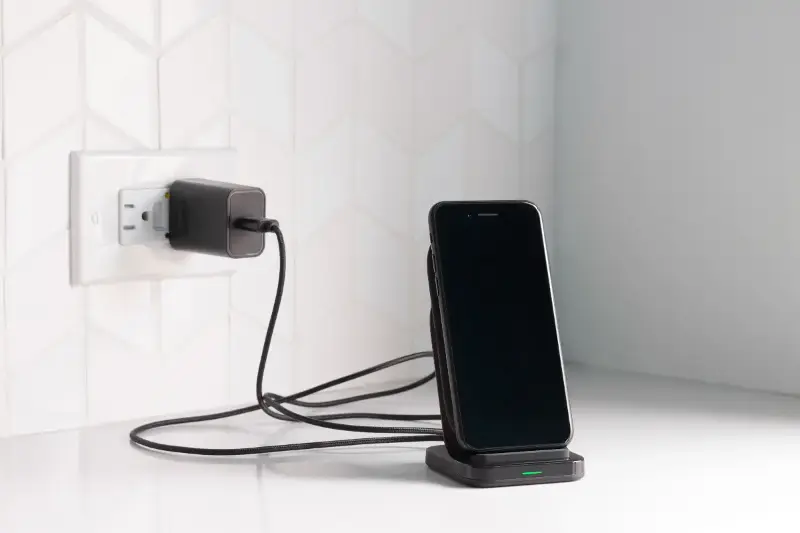
How you juice up your phone matters for both daily performance and the overall lifespan of the hardware. Modern lithium-ion batteries experience the least amount of degradation when kept between 20% and 80% charge. Try to avoid letting your phone drop completely to zero percent before plugging it in.
Whenever possible, avoid leaving your smartphone plugged into a charger overnight. Prolonged charging at maximum capacity creates subtle chemical stress over time. Instead, unplug the device once it approaches a full charge.
Finally, safeguard your phone from extreme temperatures. Excessive heat is the number one enemy of battery health. If you notice your smartphone getting warm while charging on your desk, remove its protective case temporarily to let the heat dissipate naturally.